


Inbound Logo
Web Development
Resources
Free audit
Free HubSpot Portal Audit
Get an instant audit of your HubSpot portal with actionable insights to improve CRM setup, automation, marketing, and overall performance.
Start Free Audit
button arrowbutton arrow
Webflow

Webflow SEO Checklist: 27 Optimizations That Move Rankings in 2026

time
12 MIN
date
May 2, 2026
Webflow SEO Checklist: 27 Optimizations That Move Rankings in 2026
In this article

Webflow ships with cleaner SEO defaults than most CMS platforms. That's true. It's also why most Webflow sites stop optimising after the basics and never crack page one for competitive keywords. Strong defaults are not a strategy.This Webflow SEO checklist is the 27-item playbook our Webflow agency works through on every site we ship — covering technical SEO, on-page optimisation, structured data, internal linking, and the 2026-specific signals (AI search visibility, INP, helpful-content signals) that move rankings now.If you haven't built the CMS architecture yet, start with the Webflow CMS tutorial — clean information architecture is half the SEO battle.

What Makes Webflow SEO Different from WordPress SEO?

Webflow does three things WordPress can't without plugins: ships clean semantic HTML by default, hits Core Web Vitals scores in the 90s with zero work, and gives you canonical, robots, and meta controls per page natively.What it doesn't ship: an SEO plugin doing 40 things in the background. That means every optimisation is intentional. The upside — no plugin bloat, no conflicts, faster site. The downside — if you skip an item, no automation will catch it. Hence: a checklist.

Why Webflow SEO Matters in 2026

Three forces decided the 2026 Webflow SEO landscape.1. Core Web Vitals (especially INP) are confirmed ranking signals. The 2024 INP migration filtered slow sites out of competitive SERPs. Webflow's modern templates pass INP without effort — but only if you don't load 14 third-party scripts on top.2. AI search engines (Perplexity, SGE, ChatGPT search) are picking citation sources by structured data quality. Webflow sites with clean schema get cited proportionally more often than legacy WordPress sites with messy markup.3. Google's helpful-content system rewards topical depth over keyword stuffing. Webflow's CMS reference architecture (when built right) makes building real topical authority straightforward.
Webflow SEO

The 27-Item Webflow SEO Checklist

Technical foundation (items 1–9)

  1. Set a custom domain on a paid plan. Webflow.io subdomains don't index well. Hosting plan, custom domain, day one.
  2. Force HTTPS in Project Settings. Non-negotiable. Webflow handles the certificate.
  3. Configure www vs root canonical. Pick one, redirect the other. Webflow's hosting forces a 301 if configured correctly.
  4. Submit sitemap.xml to Google Search Console and Bing. Webflow auto-generates it; submit manually the first time and on every major navigation change.
  5. Set robots.txt to allow indexing of the live site only. Block staging subdomains. Webflow lets you set this per project.
  6. Configure 301 redirects in Project Settings → Hosting. Especially after migrations or slug changes. Never rely on client-side JS redirects for SEO.
  7. Set canonical URLs on every page. Default canonical = current URL. Override only for true duplicate-content scenarios (UTM-heavy landing pages).
  8. Hreflang tags for multi-region sites. Use Webflow Localization or hand-rolled hreflang in custom head code for UK/USA splits.
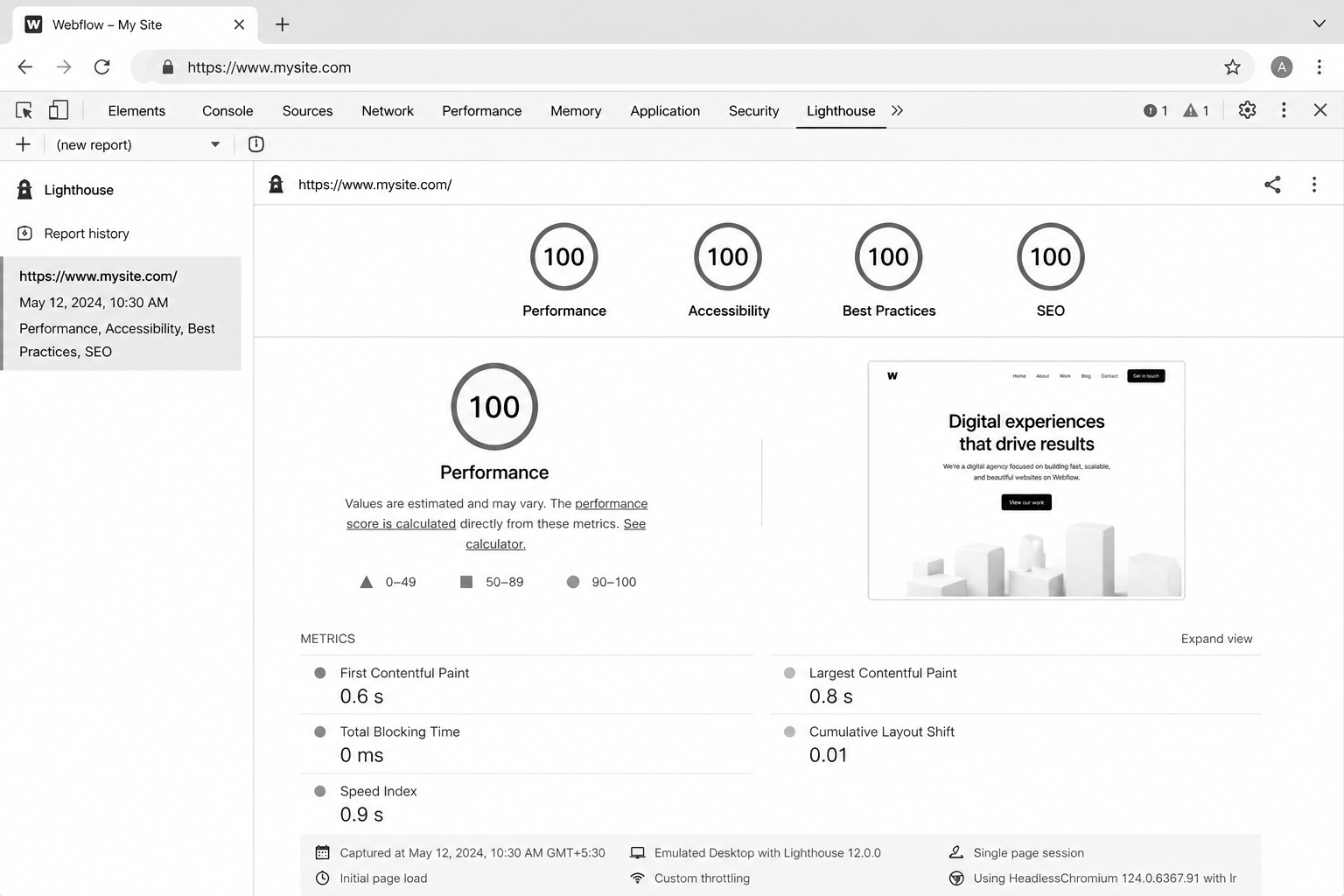
  9. Audit Core Web Vitals on PageSpeed Insights. Target LCP <2.5s, INP <200ms, CLS <0.1. Webflow defaults usually pass; third-party scripts kill them.

On-page optimisation (items 10–18)

  1. One H1 per page. Webflow lets you set any element as H1; verify in the Designer that you only have one per page.
  2. SEO Title set per page (separate from H1 — they should differ).
  3. Meta Description set per page. 140–155 chars, written for click-through, not keywords.
  4. Open Graph and Twitter Card images set per page. 1200×630 minimum for OG.
  5. Slugs short and keyword-led. No dates, no IDs, no stop words.
  6. Alt text on every image, set in the asset panel and on the image element.
  7. Internal links use descriptive anchor text, not "click here" or "this article."
  8. External links open in same tab unless explicitly required to open in new (rel="noopener" for new-tab links).
  9. Heading hierarchy follows logical depth. H2 → H3 → H4. Skipping levels confuses screen readers and search engines.

Mid-article CTA → Want a free audit of your Webflow site against this checklist? Request a free Webflow SEO audit — we'll deliver a 27-point report within 5 business days.

Structured data and schema (items 19–22)`

  1. Article schema on all blog posts. Add via custom code embed in the Collection Page template, populated with CMS fields.
  2. Organization schema in the global head. Logo, social profiles, contact info.
  3. BreadcrumbList schema wherever breadcrumbs exist visually.
  4. FAQPage schema on posts with FAQ sections. Major SGE / AI search citation driver.

Speed, performance, and INP (items 23–25)

  1. Compress all images before upload. Webflow auto-converts to WebP, but oversized originals waste bandwidth.
  2. Lazy-load below-the-fold images. Webflow has a per-image setting — use it.
  3. Audit third-party scripts ruthlessly. Heatmap tools, chat widgets, and tag managers each cost INP. Load via GTM with conditional firing where possible.

Internal linking and topical authority (items 26–27)

  1. Every blog post links to ≥2 sibling posts and ≥1 service page. Use Multi-Reference Tags to surface related posts dynamically.
  2. Pillar posts receive ≥4 inbound internal links from supporting cluster posts. Audit quarterly with Screaming Frog.

Best Tools for Webflow SEO Audits

  • Ahrefs Site Audit — strongest crawler for Webflow sites. Catches canonical, redirect, and broken-link issues.
  • Screaming Frog SEO Spider — best for internal linking audits and pillar inbound counts.
  • Google Search Console — non-negotiable. Performance and Indexing reports drive priority.
  • PageSpeed Insights — Core Web Vitals per page. Mobile and desktop separately.
  • Schema Markup Validator — verify every schema block before pushing live.
  • Ahrefs Webmaster Tools (free) — backlink monitoring without a paid subscription.

Common Webflow SEO Mistakes

  • Leaving the Webflow.io subdomain indexable after launch — duplicate content with the production domain. Block in robots.txt at staging.
  • Setting H1 from a Heading element with default H2 styling. Looks fine, fails the audit.
  • Using the CMS Item name as both H1 and SEO Title — wastes the SEO Title slot.
  • Bloating with third-party scripts after launch. Webflow's clean defaults are reversible.
  • Ignoring Search Console coverage errors for the first 90 days post-launch — when most indexation issues surface.
  • Slug changes without 301 redirects. Loses rankings instantly.

FAQ — Webflow SEO

Is Webflow good for SEO compared to WordPress?

Out of the box, better. Cleaner HTML, faster CWV, fewer plugin conflicts. WordPress can match Webflow with the right plugins and a good developer, but Webflow gets you 80% there with zero configuration.

Does Webflow handle structured data?

Yes, via custom code embeds in the head or per Collection Page template. There's no native schema plugin, but the manual approach gives you cleaner output than most WP plugins produce.

How long does Webflow SEO take to show results?

Technical fixes show in Search Console within 2–4 weeks. Content and topical authority compound over 4–9 months. Don't judge SEO on 30-day windows.

Can I rank a Webflow site for competitive keywords?

Yes, but the platform isn't the bottleneck — content quality, internal linking, and backlinks are. Webflow won't rank a thin site for "CRM software" any more than WordPress would.

Does Webflow's CMS hurt SEO at scale?

Not when architected correctly. See the Webflow CMS tutorial for the data model that scales to 5,000+ items without performance loss.

How does Webflow SEO compare for UK and USA businesses?

Identical platform behaviour. The differences come from content (regional pricing, case studies, hreflang for region-specific URLs). Webflow Localization handles UK/USA splits cleanly when needed.

Conclusion: Ship the Checklist, Then Compete on Content

Most Webflow sites stop at items 1–9. The top 1% finish all 27 and treat the checklist as a quarterly audit, not a launch task. The compounding gain over 12 months is significant — both for traditional Google rankings and for emerging AI-search citation surfaces.If you'd rather have a specialist run the audit and implement the fixes, our team does this for SaaS and B2B Webflow clients across the UK and USA. Book a free Webflow SEO audit and we'll deliver a prioritised 27-point report within 5 business days.Download the printable Webflow SEO Checklist PDF — the exact 27-item audit our team runs.

Webflow SEO Optimization Toolkit — technical SEO checklist, Webflow CMS SEO planner, keyword mapping template, on-page optimization worksheet, Core Web Vitals checklist, internal linking planner, and SEO KPI dashboard to improve rankings and build a scalable Webflow SEO strategy.

KEEP BUILDING
title arrow

You've got the plan. Let's build it.

We turn the frameworks you just read into the flows, pages, and automation behind them — under your brand, always.

Keep reading

View all articles
button arrowbutton arrow
Webflow Memberships and Gated Content: Complete 2026 Setup Guide
Webflow

Webflow Memberships and Gated Content: Complete 2026 Setup Guide

For years, the answer to "can I gate content on Webflow?" was "use Memberstack." It worked, but it added another tool, another bill, and another point of failure. Webflow Memberships changed that — and after two years of GA maturity, it's finally the right answer for most use cases in 2026.This Webflow membership site guide walks through the architecture, setup steps, gated-content patterns, and the trade-offs between native Webflow Memberships and Memberstack. By the end you'll know which one fits your project, how to wire it up, and how to scale to thousands of paying members without rebuilding.If you haven't built the underlying CMS yet, read the Webflow CMS tutorial first — Memberships is layered on top of CMS architecture, and a clean foundation matters.

What Are Webflow Memberships?

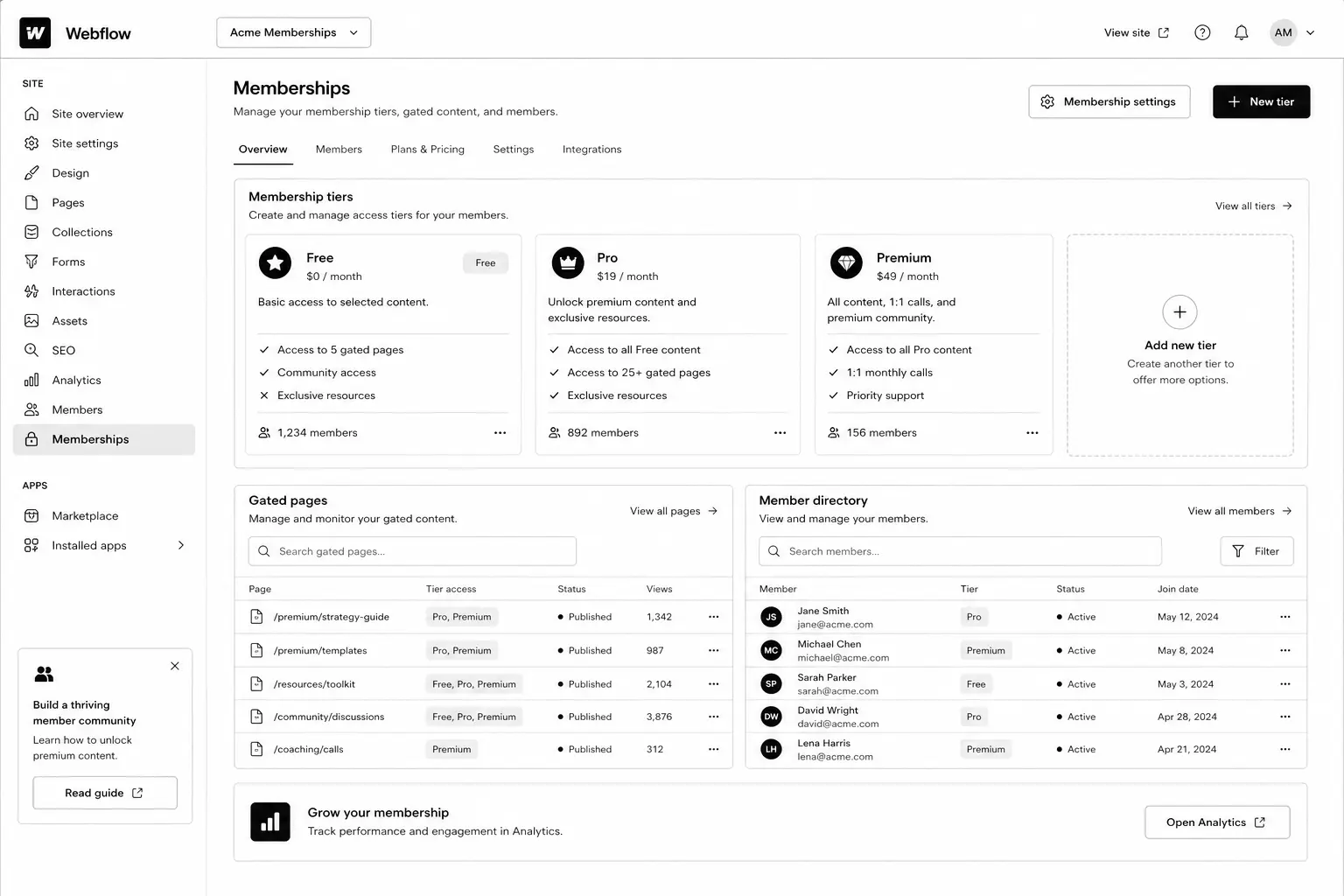
Webflow Memberships is a native module that lets you create user accounts, gate pages and CMS items, and integrate paid plans via Stripe. It handles sign-up, log-in, password reset, and access control without third-party tools.You configure access in three places: page settings (gate any page to logged-in users or paid plan members), CMS Collection settings (gate dynamic content), and the Designer (show / hide elements based on auth state).Released GA in 2023 and matured significantly through 2024–2025, the 2026 version supports paid plans, free plans, plan upgrades, and webhooks for integration with downstream tools.

Why Webflow Memberships Matters in 2026

Three reasons gated content became a serious play this year.1. AI killed ungated thin content. Free PDFs and ebook-bait lead magnets convert worse every quarter. Substantive gated resources (calculators, video courses, communities) still convert — and warrant a real membership system.2. The "free + paid tier" pattern is now standard for content businesses. Newsletters, courses, niche communities — most run a free tier (email gate) and a paid tier (Stripe-backed). Webflow Memberships handles both natively.3. Memberstack's pricing crept up. A 200-member site that cost $50/mo on Memberstack Lite in 2022 now runs $200+/mo. Native Webflow Memberships is included in CMS plans, no per-member fee.

How Webflow Memberships Works

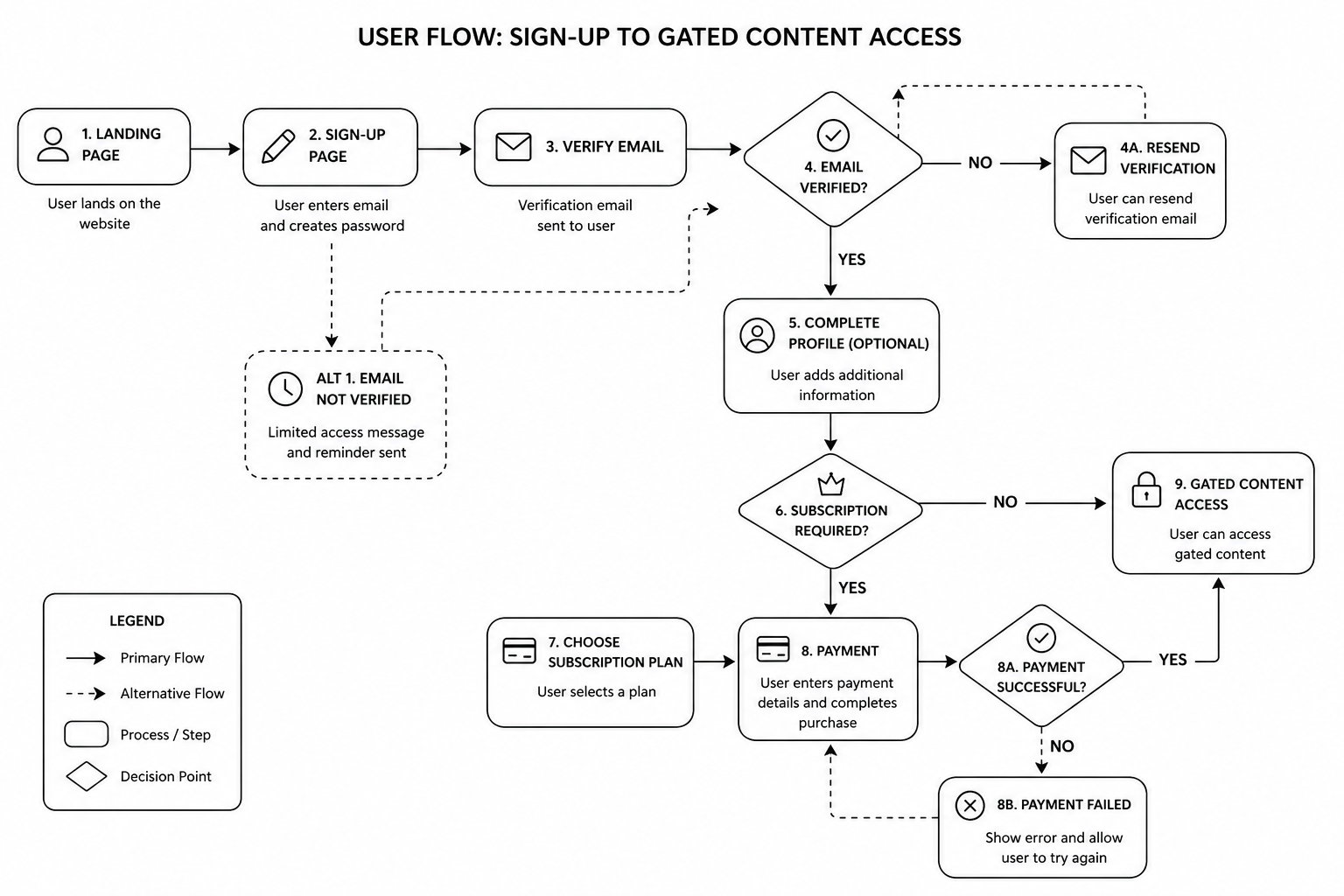
The mental model: pages and CMS items can be public, gated to "any logged-in user," or gated to specific paid plans. Users sign up, choose a plan (or stay free), pay via Stripe if needed, and the site dynamically gates content based on their auth state and plan membership.

The four building blocks

  • User Accounts — sign-up, log-in, profile, password reset
  • Plans — free, paid (one-time, monthly, yearly), with Stripe integration
  • Access Groups — collections of plans that can access specific content
  • Gated Pages and CMS — set per page or collection

Step-by-Step: Build a Webflow Membership Site

1. Plan your tier model first

Decide on the structure before opening Webflow. Common patterns:

  • Free + paid (most common). Email gate for free content, Stripe-backed paid tier for premium.
  • Free + Pro + Premium. Three tiers with progressive access.
  • Members-only community. Single paid tier, all content gated.
  • Course / cohort model. One-time payment for a fixed-length course access window.

2. Connect Stripe (for paid plans)

In Project Settings → Memberships → Payments, connect your Stripe account. Webflow uses Stripe Checkout for the payment flow — no PCI overhead. Set up Stripe Tax if you sell internationally.

3. Create plans

Add plans in the Memberships panel. For each plan, configure: name, price, billing cycle, trial (optional), and the access group.

4. Set up access groups

Access groups are collections of plans. Example: a "Premium Content" access group that includes both "Pro" and "Premium" plans. Then any page or CMS gated to that group is accessible to either plan.

5. Build sign-up, log-in, account, and password-reset pages

Webflow generates default versions; replace them with branded ones. Use the Memberships User Logged-In / Logged-Out states to conditionally show navigation, account menus, and CTAs.

6. Gate pages and CMS items

Per page: in page settings, set the access group. Per CMS: in collection settings, gate the entire collection or specific items via a reference field on each item.

7. Build the member dashboard

A dedicated logged-in homepage showing the user's name (via User Account binding), their plan, their resources, and a way to upgrade or manage billing (Stripe Customer Portal link).

8. Test the full flow end-to-end

  • Sign up free → access free content, gated correctly
  • Upgrade to paid → Stripe Checkout → return to dashboard with new access
  • Cancel paid → access reverts
  • Password reset email arrives correctly
  • Webhook fires to your CRM / email tool on plan changes

9. Wire up downstream integrations

Use Webflow Logic or third-party automations (Zapier, Make) to push new members into HubSpot, ConvertKit, or your CRM. See our marketing automation guide for patterns.Mid-article CTA → Want a specialist to architect your membership site so it scales? Book a free Webflow membership scoping call — we'll map your tier model and integrations in 45 minutes.

User Flow

Best Tools and Decisions: Native Webflow Memberships vs Memberstack

CapabilityWebflow MembershipsMemberstackNative Webflow integrationYes (built-in)Yes (via embed)PricingIncluded in CMS plans$50–500/moStripe integrationYesYesFree tierYesYesCustom user fieldsLimitedExtensiveWebhooks / APIWebhooks yes, API limitedFull APICustom auth flowsLimitedHighly customisableBest forStandard membership and gated contentSaaS-grade auth and complex flowsNative Webflow Memberships is the right answer for ~80% of projects. Use Memberstack when you need custom user metadata, advanced API integrations, or SaaS-grade auth flows that exceed native capabilities.

Common Webflow Memberships Mistakes

  • Gating too much, too early. If your free tier is thin, no one converts to paid. The paid offer needs to look obviously valuable from the free experience.
  • Forgetting password-reset and email styling. Default Webflow emails look unbranded. Customise them in Project Settings.
  • Not setting up Stripe Customer Portal. Members need a self-service way to manage billing, update cards, cancel. Stripe's Customer Portal handles it — link from the member dashboard.
  • Skipping webhook integration. If new paid members don't auto-flow into your CRM, your retention and engagement automation is dead on arrival.
  • Hard-coding access in custom code instead of using Access Groups. Brittle and unmaintainable.
  • Ignoring SEO on gated content. Decide whether each gated piece should be indexed (with a paywall metadata signal) or noindexed.

FAQ — Webflow Memberships

How much does Webflow Memberships cost?

It's included in CMS, Business, and Enterprise plans at no per-member fee. Stripe takes its standard processing fee on paid plans. No additional monthly subscription beyond your Webflow site plan.

How many members can a Webflow site handle?

The current cap is 10,000 members on Business plans, higher on Enterprise. Plenty of headroom for most B2B membership sites.

Can I migrate from Memberstack to Webflow Memberships?

Yes. Export users from Memberstack, import into Webflow via the Members API. Plan password resets — passwords don't carry across platforms.

Does Webflow Memberships support social log-in (Google, etc.)?

Not natively as of 2026. If social log-in is critical, Memberstack remains the better choice.

Can I run subscription billing through Webflow Memberships?

Yes — monthly and yearly plans via Stripe. For more complex subscription logic (proration, dunning, multiple subscription items), Stripe handles the billing logic.

Can gated content rank on Google?

Yes, with proper schema. Use the `isAccessibleForFree: false` flag in Article schema and serve the first paragraph or two to crawlers via Webflow's preview rules. Google supports this pattern formally.

Conclusion: Memberships Is Now the Default, Not the Workaround

If you're starting a new membership site or community in 2026, default to Webflow Memberships. The native integration, included pricing, and matured feature set make it the right call for the vast majority of projects. Memberstack is still the answer for SaaS-grade auth flows and deep API customisation — but those use cases are narrower than they used to be.Our Webflow agency has shipped membership sites for SaaS resource libraries, course businesses, and gated communities across the UK and USA. Book a free membership site scoping call and we'll map your tier model, integrations, and timeline in 45 minutes.Download the Membership Site Architecture Brief — the tier-model template and integration map we use on production builds.

Webflow Memberships & Gated Content Toolkit — membership strategy planner, CMS architecture template, access control framework, member journey map, gated content checklist, integration planner, launch QA checklist, and growth dashboard to build a scalable Webflow membership platform.

Webflow Ecommerce vs Shopify: Honest 2026 Comparison
Webflow

Webflow Ecommerce vs Shopify: Honest 2026 Comparison

The Webflow vs Shopify question gets framed as a fight. It isn't. The two platforms barely overlap on customer profile in 2026 — they just occasionally chase the same SMB lead. The real question for founders and ecommerce leaders is: which one fits the brand you're actually building?This Webflow Ecommerce vs Shopify comparison is the honest 2026 breakdown — features, pricing, performance, scalability, and the brand profile each platform serves best. No fence-sitting. By the end you'll know which one to choose, and why our Webflow agency and Shopify development teams routinely recommend the other one when the fit is wrong.If you want a broader platform decision, also see the Shopify vs WooCommerce vs BigCommerce comparison.

What Each Platform Actually Is

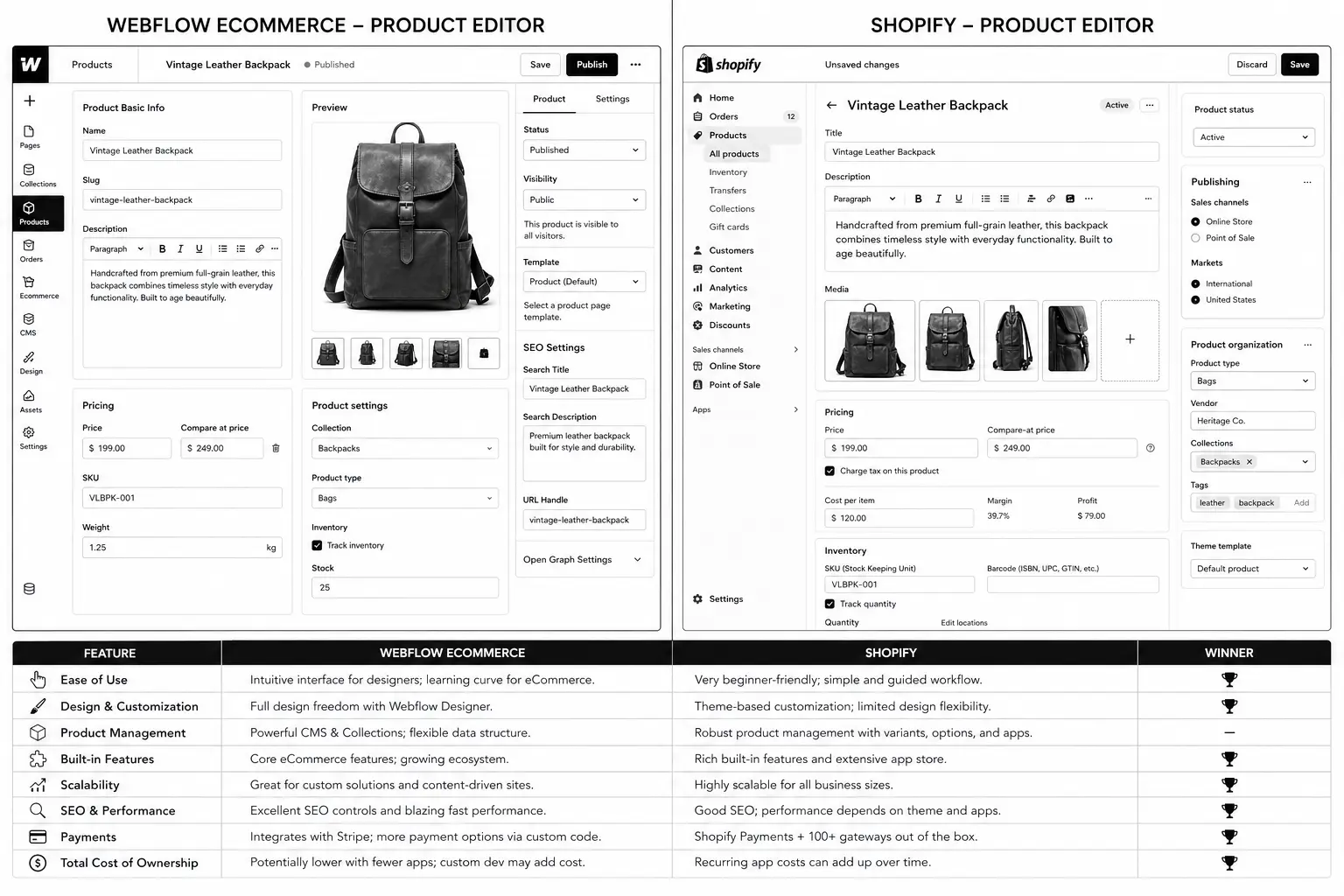
Shopify is a purpose-built ecommerce platform — store, checkout, payments, inventory, shipping, taxes, apps, fulfilment partners — at every scale from $0 to $1B+ GMV. It's vertically integrated for selling.Webflow Ecommerce is the ecommerce module bolted onto Webflow's design-first CMS. It's a way for design-led brands to run a small-to-mid commerce operation inside the same site that handles their marketing content.That difference shapes everything else. Shopify is a commerce platform with marketing features. Webflow is a marketing platform with commerce features.

Why the 2026 Comparison Looks Different from 2022

Three things shifted recently.1. Shopify's checkout extensibility is now real. The 2025 Checkout Extensibility GA closed the customisation gap that pushed brands toward custom builds. See our Shopify checkout extensibility guide.2. Webflow Ecommerce hasn't kept pace. Multi-currency, advanced subscription models, and serious B2B features remained light. Webflow continues investing in CMS and Logic, not in ecommerce parity.3. The "design-led DTC" niche stayed loyal to Webflow. Brands selling 20–200 SKUs where the site itself is part of the product experience continue choosing Webflow Ecommerce because Shopify's design constraints feel limiting.

How They Compare on the Decisions That Matter

Pricing (2026 rates, GBP and USD)

TierWebflow EcommerceShopifyEntry$29/mo USD (~£23/mo) – Standard plan, up to 500 items$39/mo USD (~£25/mo) – Basic ShopifyGrowth$74/mo USD (~£59/mo) – Plus plan, 1,000 items$105/mo USD (~£65/mo) – ShopifyScale$235/mo USD (~£185/mo) – Advanced plan, 3,000 items$399/mo USD (~£259/mo) – Advanced ShopifyEnterpriseCustom – Webflow Enterprise$2,300+/mo USD – Shopify PlusHeadline pricing favours Webflow at lower tiers. App costs change the picture: Shopify stores typically run $100–500/mo in apps. Webflow stores rely less on apps but pay for design and dev work upfront.

Product catalog and inventory

Shopify wins decisively. Native inventory across locations, variants up to 100 per product, multi-location stock, transfers, POS sync. Webflow Ecommerce caps variants and lacks multi-location inventory natively.If you have more than ~200 SKUs or any multi-location warehousing, Shopify is the answer.

Checkout and payments

Shopify Pay, Shop Pay, native Apple/Google Pay, dozens of regional payment methods, accelerated checkout that lifts conversion 5–15% on returning customers. Webflow's checkout is functional but plain.For high-volume DTC, the Shopify checkout alone is worth the platform difference. Conversion rates show it.

Subscriptions and B2B

Shopify has native subscription APIs, a thriving subscription app ecosystem (Recharge, Smartrr, Bold), and native B2B wholesale features (see Shopify B2B wholesale guide). Webflow's subscription support is essentially DIY via Stripe and Logic.

Design flexibility and brand expression

Webflow wins decisively here. Pixel-perfect control, custom interactions, no theme lock-in, full visual freedom on every page. Shopify's theme system is more flexible than it was in 2022 (especially with Online Store 2.0 sections), but it still feels like a templating system, not a design canvas.For brands where the site is part of the brand experience — fashion, design objects, premium DTC, lifestyle — Webflow's flexibility is hard to give up.

Content marketing and SEO

Webflow is built around CMS. Shopify's blog is famously weak — most serious Shopify content operations run on Webflow or WordPress and link out to the Shopify store. See our Webflow CMS tutorial for the content architecture.If content marketing is core to your acquisition strategy, Webflow's CMS is a real advantage even if you eventually run the store on Shopify.

Apps and ecosystem

Shopify has 8,000+ apps; Webflow has tens. For shipping logistics, advanced reviews, loyalty, analytics, and ops automation, Shopify wins on ecosystem depth.

Performance and Core Web Vitals

Webflow's defaults beat most Shopify themes on Lighthouse. Modern Shopify themes (Dawn, custom-built) can match Webflow with care. Heavy app stacks tank Shopify CWV unless audited.

Multi-currency, multi-region

Shopify Markets handles multi-currency natively across all plans. Webflow Ecommerce multi-currency is limited and clunkier. For brands selling internationally, Shopify wins.

Multi currency Multi region

Mid-article CTA → Not sure which platform fits your brand? Book a free platform consultation — we'll review your business and recommend the right answer in 30 minutes, no sales pressure.

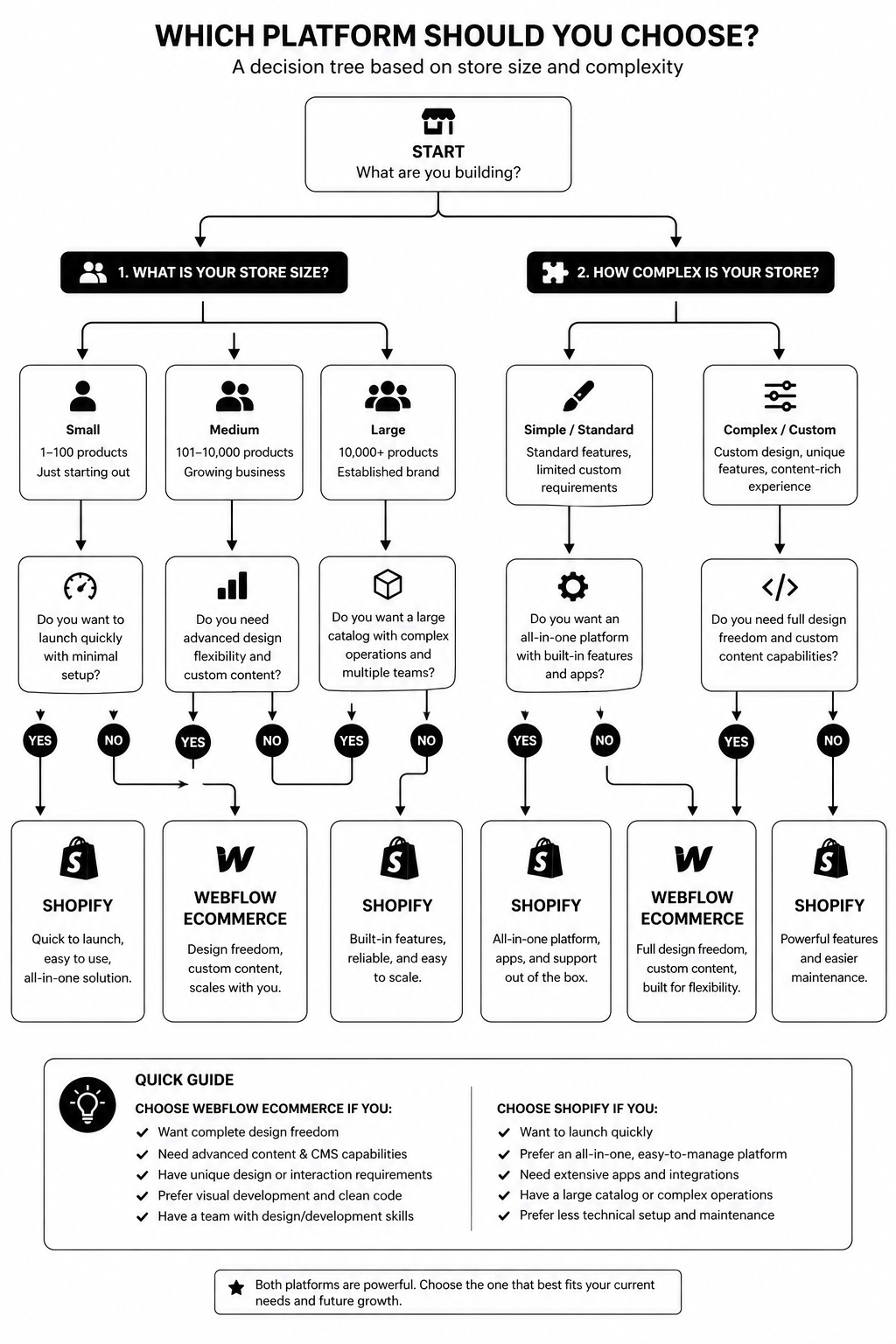
Step-by-Step: How to Choose Between Webflow Ecommerce and Shopify

  1. Count your SKUs and variants. >200 SKUs or complex variants → Shopify. ≤200 simple products → Webflow viable.
  2. Audit your fulfilment. Multi-location, 3PL integration, POS — Shopify. Single-fulfilment DTC — either works.
  3. Check international ambitions. Multi-currency / multi-region in next 24 months → Shopify Markets.
  4. Decide content-marketing priority. SEO and content are #1 acquisition channel → Webflow CMS (with or without Webflow Ecommerce).
  5. Assess design ambition. Custom interactions, brand-led storytelling sites → Webflow. Standard ecommerce store with minor branding → Shopify.
  6. Forecast subscription / B2B needs. Either coming in next 18 months → Shopify.
  7. Sanity-check the team. Marketing-led team that wants visual control → Webflow. Ops-led team that wants integrations → Shopify.

The hybrid play (more common in 2026 than people admit)

Many brands run Webflow for the marketing site and content hub, and Shopify for the store. Subdomain split (`www.brand.com` on Webflow, `shop.brand.com` on Shopify) keeps the design freedom for marketing while giving the commerce side Shopify's depth.Done well, this is the best of both. Done badly, you have two platforms to maintain. Worth it for brands above ~$2M GMV with serious content marketing.

Best Use Cases for Each

Webflow Ecommerce wins for

  • Design-led DTC brands (20–150 SKUs)
  • Premium / niche brands where site is part of the product
  • Studios and product brands with strong content marketing
  • Membership + light commerce hybrids
  • Sites where editorial > transactional

Shopify wins for

  • Anything above 200 SKUs
  • International / multi-currency stores
  • Subscription, B2B, or omnichannel (POS) brands
  • Brands scaling past $1M GMV in 12–24 months
  • Stores with complex fulfilment or 3PL integration

Common Mistakes When Choosing

  • Picking based on monthly subscription cost. Implementation and apps dwarf the plan price. TCO matters.
  • Underestimating SKU growth. A brand projecting 50 SKUs ends up at 300 in 18 months. Plan for the trajectory, not the snapshot.
  • Choosing Webflow because the designer recommends it. Designer fit and business fit aren't the same thing.
  • Choosing Shopify because the agency only knows Shopify. Same problem in reverse.
  • Ignoring the international roadmap. Multi-currency rebuilds are expensive — pick a platform that supports your trajectory.
  • Skipping the hybrid option. For content-heavy brands above $2M GMV, hybrid is often the right call.

FAQ — Webflow Ecommerce vs Shopify

Is Webflow Ecommerce good enough for serious brands?

Yes, up to a point. Brands selling 20–150 SKUs in a single market with strong content marketing are well-served. Past that, Shopify becomes the better fit.

Can I migrate from Webflow Ecommerce to Shopify later?

Yes — and many brands do. Product, customer, and order migration tools exist. Plan for SEO redirects on the migration; keep canonical URL structure where possible.

Does Shopify have anything close to Webflow's design flexibility?

With Online Store 2.0 sections, custom theme development, and now Hydrogen for headless builds — closer than people think. Still not parity. See Shopify Hydrogen guide.

Which platform is better for SEO?

Webflow has the cleaner technical SEO baseline. Shopify caught up but still has known issues (duplicate URLs from collections, blog limitations). For content-driven SEO strategies, Webflow wins.

Are Webflow Ecommerce transaction fees lower than Shopify's?

Webflow charges 0% transaction fees on Plus and Advanced plans. Shopify charges 0% if you use Shopify Payments, otherwise 0.5%–2% depending on plan. Net cost is similar at scale.

Can I run Webflow for marketing and Shopify for ecommerce?

Yes — and for content-heavy brands above ~$2M GMV, this hybrid is often the right architecture. Subdomain split keeps both platforms doing what they're best at.

Conclusion: Pick for the Brand You're Building, Not the One You Have

The honest answer to Webflow Ecommerce vs Shopify: Shopify if commerce is the product, Webflow if the site is part of the product. Above 200 SKUs, international, subscription, or B2B — Shopify, almost always. Design-led DTC under 150 SKUs with content as the growth engine — Webflow.If you're between the two and the trade-offs feel close, the hybrid setup is worth a serious look. Our team has shipped both pure-play and hybrid builds for brands across the UK and USA. Book a free platform consultation and we'll point you at the right answer in 30 minutes.Download the Ecommerce Platform Decision Matrix V2 — the scoring framework we use on every platform call.

Webflow Ecommerce vs Shopify Decision Guide — platform comparison checklist, feature comparison matrix, cost calculator, scalability assessment, SEO evaluation worksheet, migration planning template, and decision framework to help you choose the right ecommerce platform for your business.

Webflow CMS Tutorial: Build a Scalable Content Engine in 2026
Webflow

Webflow CMS Tutorial: Build a Scalable Content Engine in 2026

Most Webflow CMS builds work beautifully — until they don't. Around 300 to 500 items in, the cracks show: collections that should reference each other don't, templates fork into copy-paste duplicates, and the marketing team starts asking why they need a developer to add a new content type. By the time the site has 1,500 items, a rebuild is on the roadmap.None of that has to happen. Webflow CMS scales fine to several thousand items — but only when the architecture is right from day one. This Webflow CMS tutorial walks through the structure, references, and template patterns we use on every Webflow build at our Webflow agency, including for SaaS clients shipping 30+ blog posts a month.If you're new to Webflow itself, start with the Webflow development guide. If you're optimising a CMS that's already live, pair this with the Webflow SEO checklist for technical hygiene.

What Is Webflow CMS, Really?

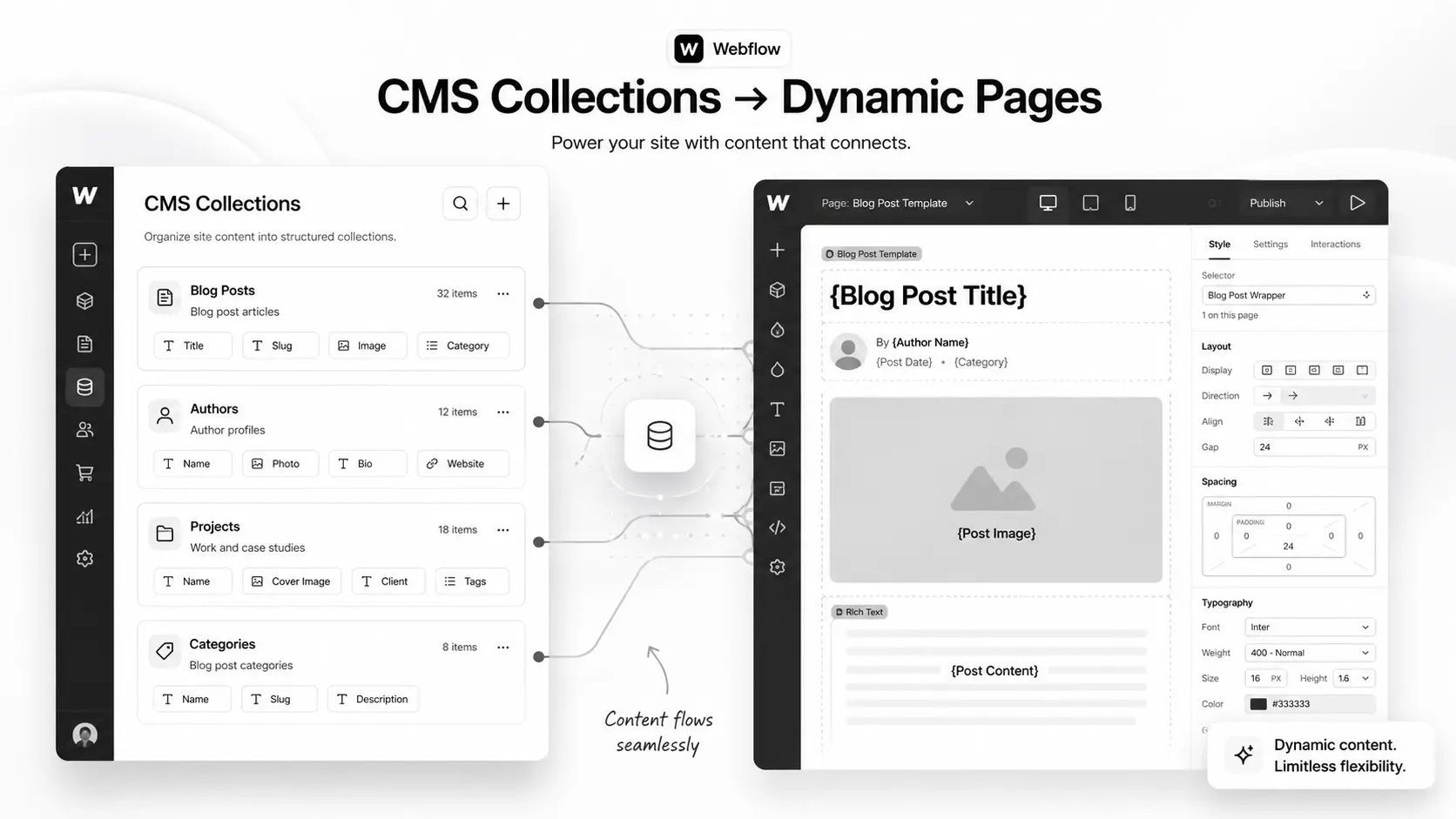
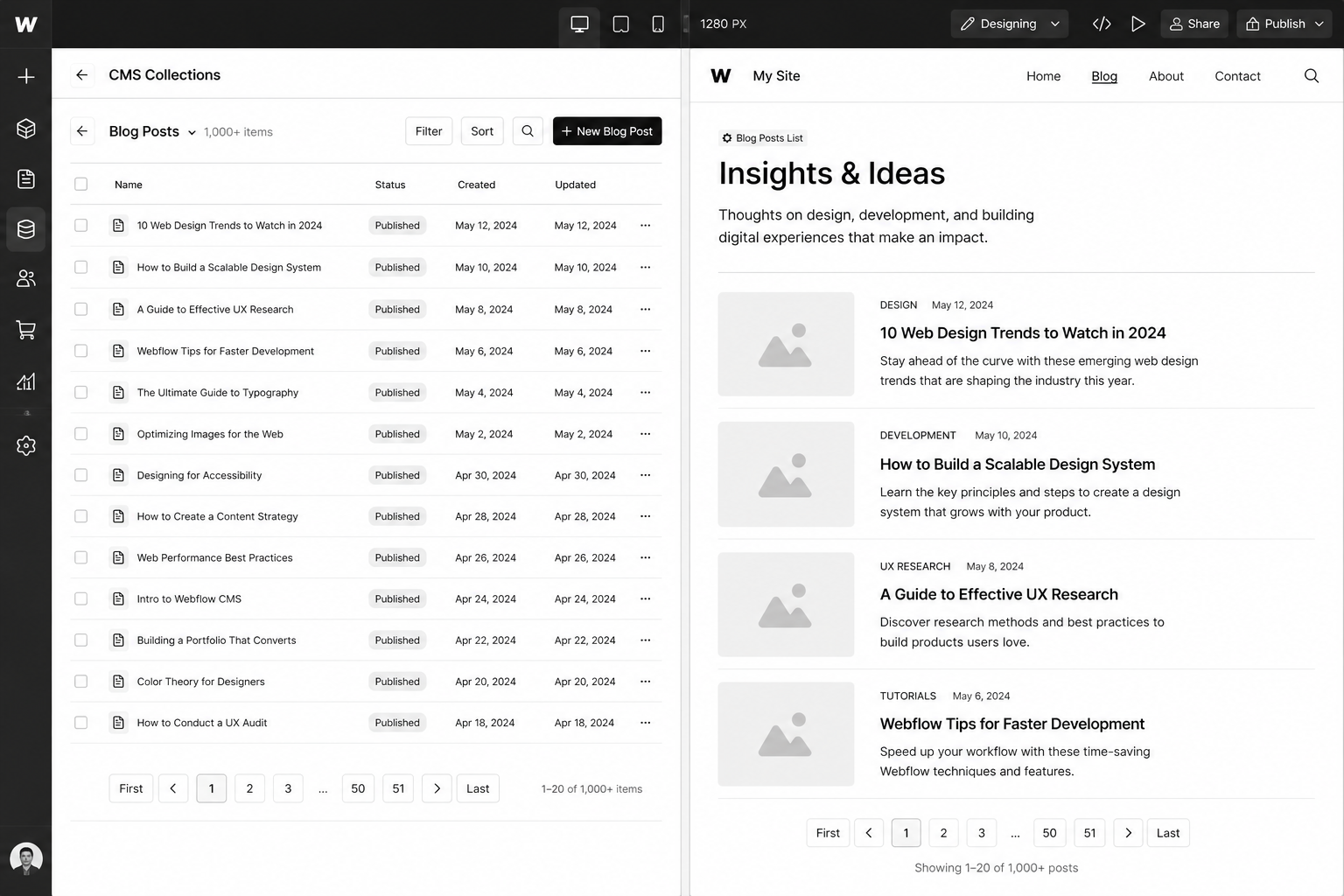
Webflow CMS is a content database baked into the Webflow Designer. You define Collections (think: blog posts, case studies, team members, products), each with custom fields, and Webflow generates dynamic pages and lists from those records.The platform's marketing positions it as "no-code blogging." That's underselling it. A well-architected Webflow CMS is closer to a headless content platform with a visual frontend builder — capable of running multi-language sites, gated resource libraries, and publication-grade content hubs.What it isn't: a database for transactional records. CMS is built for editorial content with reasonable update frequency, not for thousands of writes per day.

The four building blocks

  • Collections — the content types (Blog Posts, Authors, Categories).
  • Fields — the columns inside each collection (title, slug, body, publish date).
  • Reference / Multi-Reference fields — the relationships between collections.
  • Collection Pages and Collection Lists — the dynamic templates that render the data.

Get those four right, and the rest is design. Get them wrong, and every change becomes a project.

Why Webflow CMS Architecture Matters in 2026

Three reasons your CMS structure decides whether the site compounds or stagnates.1. Content velocity is now a ranking signal. Google's helpful-content updates reward sites with ongoing publishing rhythm. If your CMS makes adding a new content type a developer ticket, your team will publish less. Less publishing means slower topical authority.2. AI search rewards structure. Perplexity, ChatGPT search, and Google's SGE pull from sites that expose clean structured data. A Webflow CMS with proper reference relationships outputs cleaner JSON-LD and gets cited more often.3. Editorial UX drives team adoption. A clean Webflow Editor experience — where a marketer can ship a case study without touching the Designer — is the difference between a CMS that gets used and one that gets bypassed via Notion.

How Webflow CMS Architecture Works

The mental model: design your data model first, your pages second. Most Webflow projects do the reverse and pay for it later.

Step 1 — Map your content types before you open Webflow

On paper or in Notion, list every content type the site needs in the next 24 months. For a typical SaaS marketing site:

  • Blog Posts
  • Authors
  • Categories
  • Tags
  • Customer Stories
  • Industries
  • Roles (job titles you market to)
  • Integrations
  • Help / Docs Articles
  • Webinars / Events
  • Glossary Terms

If you skip this list, you'll add types reactively — and the CMS will sprawl into duplicate-purpose collections within six months.

Step 2 — Decide on references early

For each content type, decide which other types it relates to. A Blog Post likely references one Author, one Category, multiple Tags, and zero or more Customer Stories.Reference fields are the single most powerful Webflow CMS feature, and the most under-used. They're how you build:

  • Author archive pages without duplicating bio content per post
  • Category and tag landing pages with fully dynamic post lists
  • Cross-sells ("Other case studies in this industry")
  • Internal linking that updates automatically when content changes

Step 3 — Set the field types correctly the first time

Changing a field type after content is in the CMS is painful. Plan these carefully:

  • Plain Text for SEO titles and meta descriptions (not Rich Text)
  • Rich Text only for body content where formatting is needed
  • Switch (boolean) for filters like "Featured" or "Members only"
  • Option (single-select) for fixed values like content stage or difficulty
  • Reference for one-to-one relationships
  • Multi-Reference for many-to-many relationships (capped at 5 in some plans — design around it)

Step 4 — Use Collection Pages as templates, not as one-offs

Every collection automatically generates a Collection Page — the template all items render through. Build it once, build it well: hero with dynamic title, dynamic body, related-items section pulled via Multi-Reference, structured data block, FAQ pulled from a nested collection if needed.

Step 5 — Build Collection Lists with filtering, not duplication

If you find yourself building three near-identical pages with different post lists ("All posts", "Webflow posts", "Shopify posts"), you've drifted into duplication. The right answer: one template page filtered by Category reference, rendered through dynamic routing or query parameters.Mid-article CTA → Stuck deciding between a template build and a custom CMS architecture? Book a free Webflow CMS architecture call — we'll map your collections and references in 45 minutes.

Step-by-Step: Build a Scalable Blog CMS in Webflow

A worked example. We'll build the foundation for a SaaS blog that needs to scale to ~3,000 posts and survive future expansion to docs, glossary, and customer stories.

1. Create the supporting collections first

  1. Authors — fields: Name (Plain Text), Slug, Photo (Image), Bio (Rich Text), Twitter (Link), LinkedIn (Link)
  2. Categories — fields: Name, Slug, Description (Plain Text), Hero Image, SEO Title, Meta Description
  3. Tags — fields: Name, Slug, Description

2. Create the Blog Posts collection

Fields, in this exact order:

  • Name (the post title)
  • Slug (auto-generated)
  • SEO Title (Plain Text, separate from Name)
  • Meta Description (Plain Text)
  • Excerpt (Plain Text, 160 chars)
  • Featured Image (Image)
  • Featured Alt Text (Plain Text)
  • Body (Rich Text)
  • Publish Date (Date)
  • Updated Date (Date)
  • Author (Reference → Authors)
  • Category (Reference → Categories)
  • Tags (Multi-Reference → Tags)
  • Featured (Switch)
  • Reading Time (Number)

That's 15 fields — comfortably under Webflow's 30-field limit per collection, with room to grow.

3. Build the Collection Page once

The Blog Post template page should include a hero (dynamic Name + Featured Image + Author photo via reference), the Rich Text body, an Author bio block (also via reference, no duplication), a Related Posts section using Multi-Reference Tags, and structured data (Article + FAQPage when applicable).

4. Build the Blog index with filterable Collection Lists

One Collection List sorted by Publish Date descending. Add filter rules driven by URL parameters or use a third-party filter library if you need client-side filtering.

5. Wire up the Authors and Categories archives

Each gets its own Collection Page template. The Author template includes a list of all posts where Author = current. The Category template does the same.Now you have an architecture that handles 3,000 posts, 50 authors, 30 categories without rework. Adding "Customer Stories" later means creating one more collection and pointing a Multi-Reference at it.

Webflow CMS

Best Tools and Add-Ons for Webflow CMS

Webflow ships with strong defaults but the production setups we run for clients usually layer in 2–3 of these:

  • Whalesync — two-way sync between Webflow CMS and Airtable / Notion / Google Sheets. Lets non-technical teams manage content in spreadsheets while the site renders through Webflow.
  • Finsweet CMS Library — extends native Collection Lists with advanced filtering, infinite scroll, and combine (merging multiple collections into one list).
  • PowerImporter — bulk import from spreadsheets, especially useful for migrating from WordPress or HubSpot.
  • Memberstack or Webflow Memberships — for gated content. See our Webflow Memberships guide for the trade-offs.
  • Jetboost — adds CMS-driven search, favorites, and dynamic load-more.

The principle: don't add an integration unless it removes a real bottleneck. Each one is another dependency to maintain.

Common Webflow CMS Mistakes (and How to Avoid Them)

  • Skipping reference fields and using plain text instead. "Author Name" as plain text means renaming an author requires editing every post. Use References.
  • Over-using Rich Text for structural content. Rich Text is great for body copy, terrible for repeatable layout. If hero copy lives in Rich Text, you'll fight formatting forever.
  • Not separating SEO Title from CMS Item Name. Marketers want to A/B test SEO titles without changing the slug or display title. Two fields. Always.
  • Building duplicate templates for "different" page types. Three near-identical Collection Pages should be one template + a switch field.
  • Ignoring the 5-Multi-Reference cap on lower plans. Plan reference architecture around plan limits or budget for the upgrade.
  • Forgetting to set "Updated Date". Google rewards freshness. A clean update workflow that bumps this field on edits is worth real ranking gains.

Webflow CMS for Multi-Language and Multi-Region Sites

Webflow Localization (released GA in 2024 and matured through 2025) is now production-ready. It lets you ship localised content per locale with proper hreflang tags, region-specific routing, and translated CMS fields.For UK/USA splits where the language is the same but messaging differs (pricing in GBP vs USD, case study selection, regional compliance language), Localization is the cleanest pattern. The alternative — duplicate sites — is rarely worth the maintenance cost.

FAQ — Webflow CMS

How many CMS items can Webflow handle?

The current cap is 10,000 CMS items per site on Business plans and 20,000 on Enterprise. Practically, sites stay performant up to several thousand items if reference relationships are clean. Past 5,000 items, plan paginated lists carefully and avoid uncached Multi-Reference loops.

Can I migrate WordPress content into Webflow CMS?

Yes. Tools like PowerImporter or Whalesync handle most of the lift. For complex sites, our team runs the migration manually with redirect maps and field mapping — see the WordPress to Webflow migration playbook.

Is Webflow CMS good for SEO?

Yes — better than WordPress out of the box. Clean HTML, fast Core Web Vitals, easy structured data via custom code embeds, and proper canonical / hreflang controls. Pair with the Webflow SEO checklist for the full setup.

Can I use Webflow CMS without a developer?

Once the architecture is built, yes — content editors work entirely in the Webflow Editor. The build itself benefits from a developer or specialist agency. The cost of a botched information architecture exceeds the cost of doing it right the first time.

Does Webflow CMS support multi-language sites?

Yes, via Webflow Localization. Native hreflang, locale-specific routing, and translated fields are all supported. For UK/USA splits with the same language, Localization handles it cleanly without duplicate sites.

How does Webflow CMS pricing work?

CMS is included on all paid Site plans. The CMS plan ($23/mo USD or ~£18/mo GBP at 2026 rates) supports 2,000 items; Business plan ($39/mo USD) supports 10,000. Upgrades are seamless. See the Webflow development cost guide for total project budgets.

Conclusion: Build the CMS Once, Right

Every Webflow CMS rebuild we get hired to fix has the same root cause: the original architecture was designed page-by-page instead of data-model-first. The fix is rarely more design — it's better information architecture.If you're starting a new Webflow site, spend a day on the data model before you open the Designer. If you're already live and feeling the cracks, an architecture audit usually reveals 70% of the issue is fixable without a rebuild.Either way, our Webflow team has shipped CMS architectures for SaaS sites publishing 50+ posts a month and B2B brands with 3,000+ items across collections. Book a free Webflow CMS architecture call and we'll map yours in under an hour.Download the Webflow CMS Architecture Blueprint — the exact data model and reference graph we use on production SaaS builds.

Webflow CMS Content Engine Toolkit — CMS planning worksheet, collection structure template, dynamic content checklist, SEO optimization guide, CMS migration planner, content workflow framework, and scalability checklist to build a powerful Webflow CMS architecture that grows with your business.